|
Check Pending Privileges |
|
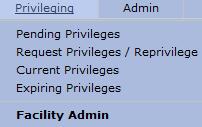
The "Pending
Privileges" section of the  menu,
as shown below, allows the user to View the Privileging Request Log, Edit
a Log Item or perform a task specific to an individual line item.
menu,
as shown below, allows the user to View the Privileging Request Log, Edit
a Log Item or perform a task specific to an individual line item.
To view Pending Privileges
go to the section and select "Pending
Privileges" from the drop-down menu.
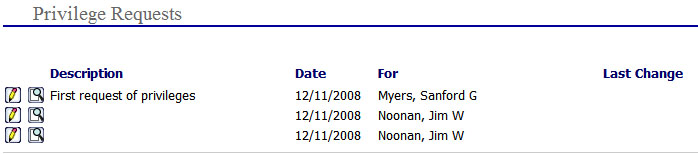
The "Privilege Request" page is displayed from oldest to newest:
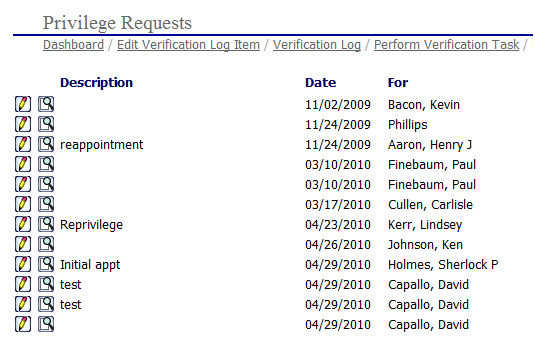
Edit an Existing Privilege Request
From
the "Privilege Requests" page
as shown above, select the  icon next to the privilege request
description to open the "Edit Privilege
Request" page.
icon next to the privilege request
description to open the "Edit Privilege
Request" page.
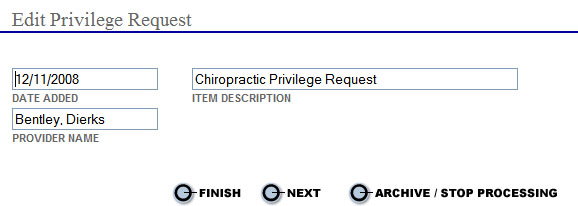
Make all necessary corrections and do one of the following:
Select
the button to save the information and return to the main
"Privilege Requests" page.
button to save the information and return to the main
"Privilege Requests" page.
Make
any necessary changes to the privilege request description and then select
the button to open the "Privilege
Requests, You have chosen the following specialties"
page.
button to open the "Privilege
Requests, You have chosen the following specialties"
page.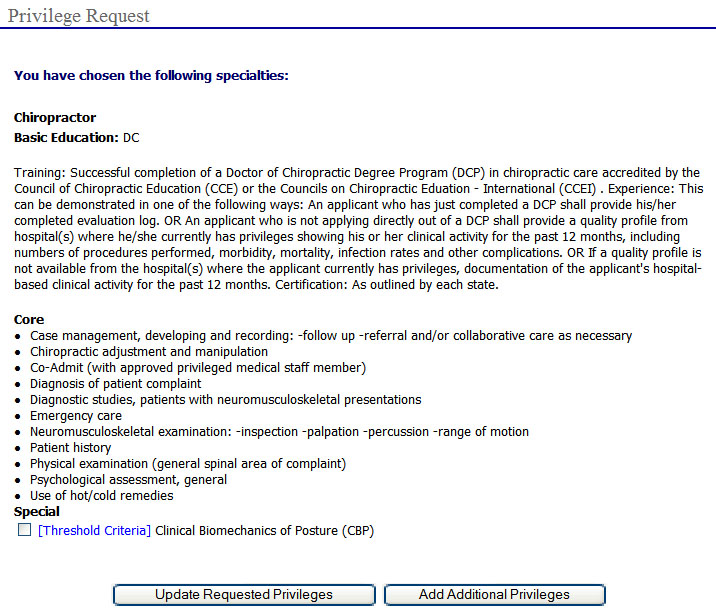
Review
the privilege information and then select the  button to
save the privilege description information updated in step "b"
above and return to the main "Privilege
Requests" page,
or
button to
save the privilege description information updated in step "b"
above and return to the main "Privilege
Requests" page,
or
Select
the  button to open the "Specialties"
page.
button to open the "Specialties"
page.
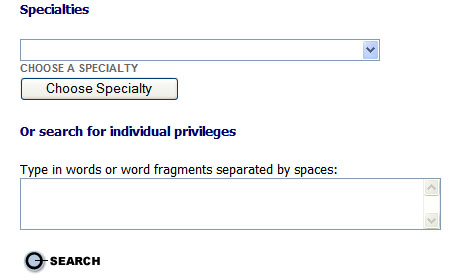
Select a Specialty from the drop-down menu or use the search box.
Enter
all or part of the privilege to be added to the privilege request and
select the  button to open the search results page.
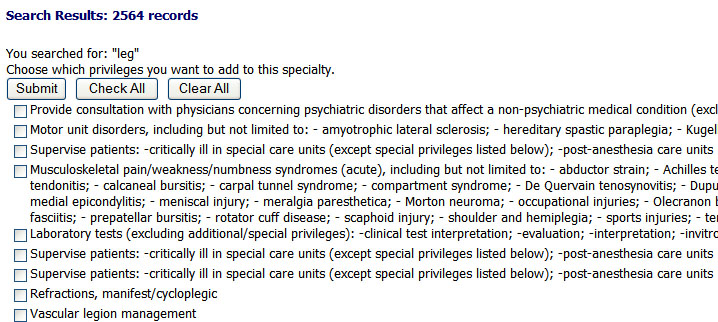
Select
the  button to add all of the privileges to the privilege request
or to select specific privileges, click the
button to add all of the privileges to the privilege request
or to select specific privileges, click the  next to the
privilege description.
next to the
privilege description.
Click
the  button
to open the confirmation page.
button
to open the confirmation page.

Select
the  radio button next to yes or no to confirm or cancel
the additional privileges request and return to the main "Privilege
Requests" page.
radio button next to yes or no to confirm or cancel
the additional privileges request and return to the main "Privilege
Requests" page.
Performing a Task for a Requested Privilege
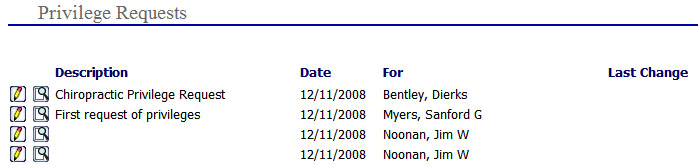
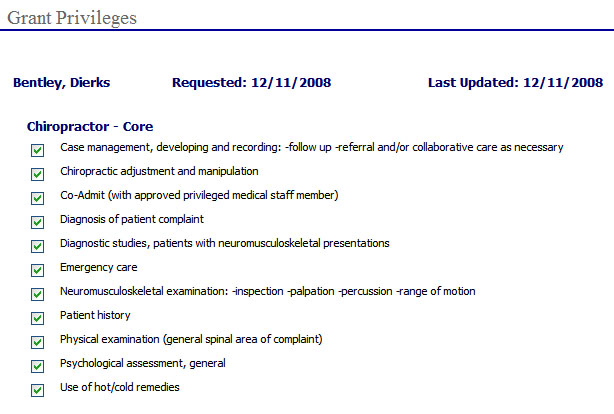
From
the "Privilege Requests" page
as shown above, select the  icon next to the privilege request
description to open the "Grant Privileges"
page.
icon next to the privilege request
description to open the "Grant Privileges"
page.
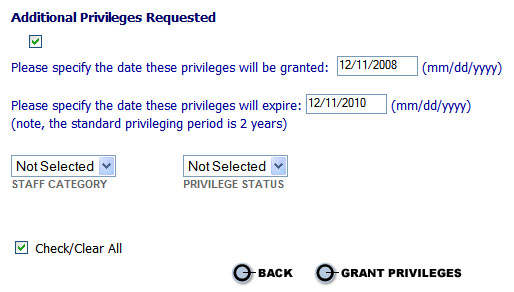
Verify
and/or enter all applicable information and select the  button
to open and view the "Current Privileges"
page for the provider.
button
to open and view the "Current Privileges"
page for the provider.
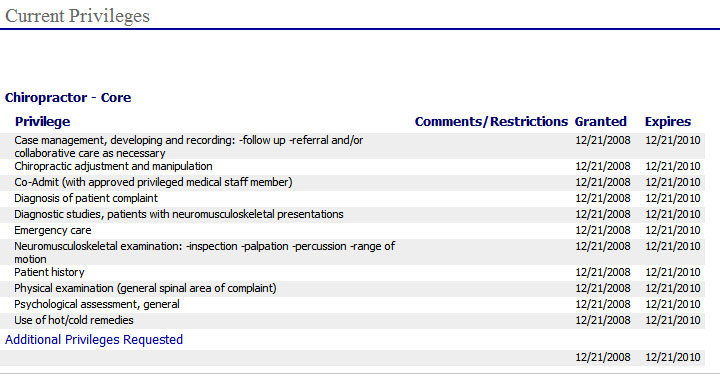
The granted privilege will be displayed in the list of granted privileges for the provider.
To
print the provider's granted privileges, click the  print
icon at the top right of the page.
print
icon at the top right of the page.
When "Pending Privileges" is selected and the main "Privilege Requests" page is displayed, the provider will be removed from the request log.