

|
Document Expiration Report |
|
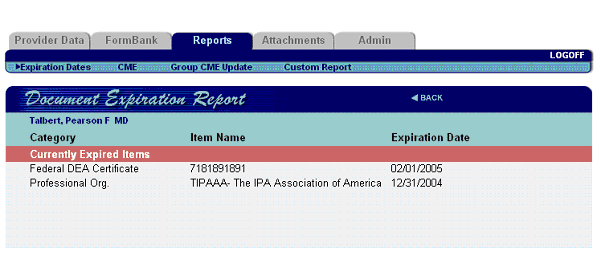
The “Document Expiration Report” shows all credentialing items entered for a provider that have expired as of the day the report was generated
To print the report
select the  icon on the "Internet
Explorer" window
icon on the "Internet
Explorer" window
Provider - 4) Global Document Expiration Check
Global document expiration check is a report of all documents (licenses, DEA and CDS certificates, etc.) that have expired or are about to expire for each provider. The report lists documents that are expired, expire in 30 days, expire in 60 days and expire in 90 days
Provider - 5) Global Document Expiration Letters & Email
To send notifications to all providers who have expired or expiring documents:
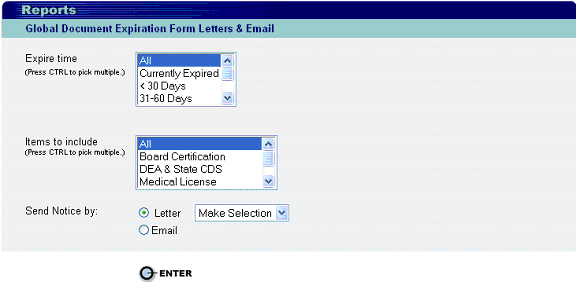
First select the time interval before the items expire. (You may select All or choose more than one time interval.)
Next select one or more areas that may contain expiring documents or choose All.
Choose
a letter from the Form Letter list or select Email. Note that if you do
not have email addresses in the provider record, no email will be sent.
Press 
If you chose to Send Notice By Letter, the letters will be merged with the appropriate provider and document names will display as a .pdf file in an Acrobat window. Each page of the pdf document contains one letter. Review the letters and print from Acrobat. (File>Print) Use the browser’s Back button to return to Universal Credentialing.
The Document Expiration Form Letters are created in Verification>Admin>Build Form Letter Template. (See Verification)
If you chose to Send Notice By Email, a message will be sent to each provider detailing the type of item and its expiration date. The message further states, ”Please take the time to renew this item. Thank you!”
When the messages have been sent, the system displays a confirmation page showing which emails were sent to each provider and the name of the expiring document and its expiration date. It also displays which, if any, were not sent because email addresses were not found in the provider’s data.


